
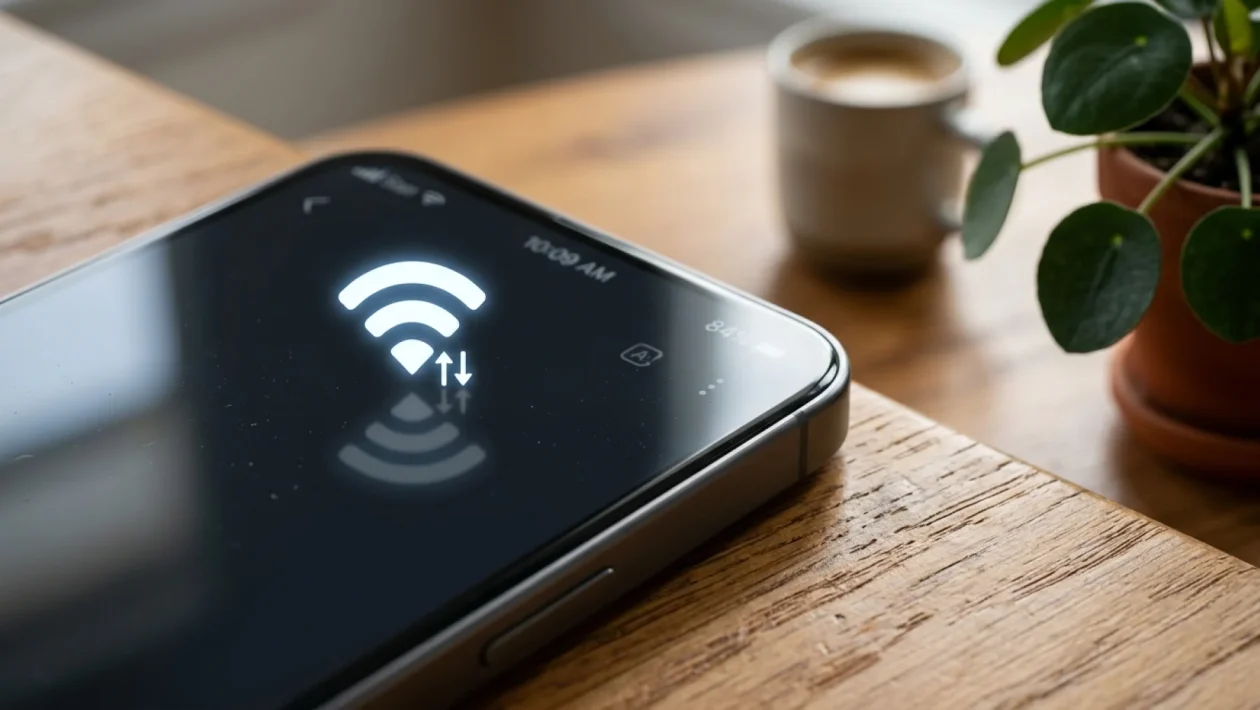
You glance at the top corner of your screen to check your battery, and there they are: two tiny, frantic arrows lighting up right next to your wireless icon. If you are using a modern Android device, you have probably wondered if your device is downloading a massive update or if an app has gone rogue. The truth is, those Samsung Wi-Fi arrows are not just useless screen clutter.
They are actually a live diagnostic tool built right into your status bar. If you know how to read them, they tell you exactly what your handset is doing behind your back. Let’s cut through the tech jargon and figure out how you can use this hidden feature to speed up your connection and save battery life.
Samsung Wi-Fi Arrows Decoded
At their core, those tiny triangles are all about data traffic control. The arrow pointing up represents your phone sending data out to the internet, which we call uploading. The arrow pointing down represents data coming into your device, commonly known as downloading.
When you send a photo to a buddy, the up arrow flashes. When you load a webpage or stream a video, the down arrow lights up. It is a visual heartbeat of your network connection.
In fact, keeping an eye on this can be incredibly revealing. According to a recent 2026 telecommunications usage report, invisible background app refreshes account for up to 30% of a smartphone’s daily wireless data consumption. If both arrows are constantly lit when you aren’t actively using your device, your background apps are having a data-guzzling party.
What Those Hidden Blinking Signs Are
The blinking is where the real story lies. The arrows don’t just stay statically illuminated; they flicker based on real-time network activity. If you are sitting in your living room connected to your Rogers Ignite or Bell Fibe home network, your phone is constantly “shaking hands” with the router.
Understanding the blinking patterns can save you a lot of troubleshooting headaches when your internet feels sluggish. Here is a quick breakdown of what the different states mean for your daily usage.
| Arrow Behavior | What It Actually Means |
|---|---|
| Only Down Arrow Blinks | You are actively receiving data (loading a site, streaming, or an app updating). |
| Only Up Arrow Blinks | Your phone is sending data (uploading a file, sending a text, backing up photos). |
| Both Blink Rapidly | Heavy two-way traffic. A video call or online gaming session is in progress. |
| Grayed Out / Not Blinking | Connected to the router, but zero active data is being transferred. |
What They Mean For Your Phone
So, why should you care about these microscopic Samsung Wi-Fi arrows? Because constant, unexplained blinking means your phone is working overtime. When your wireless antenna is constantly receiving and transmitting, it drains your battery significantly faster.
If you notice those arrows lighting up like a Christmas tree while your phone is just resting on your desk, a rogue app is likely syncing massive files to the cloud. Taking control of this background data is the easiest way to stretch your battery life until bedtime.
“Most users ignore their status bar until their internet cuts out completely. Think of those arrows as the check-engine light for your network—if they are flashing wildly when you aren’t doing anything, it is time to check your background app permissions.”
To stop unnecessary data drain and keep your battery in top shape, you need to know which apps are abusing your connection. Here is how you can easily check and restrict them.
- Open the Settings app on your Samsung device.
- Tap on Connections, then select Data usage.
- Click on Wi-Fi data usage to see a list of apps ranked by how much data they consume.
- Tap on any suspiciously active app and toggle off Allow background data usage.
Frequently Asked Questions
Do these arrows mean someone is hacking my phone?
No, not at all. The arrows simply indicate that data is being transferred between your phone and your router. While it could mean an app is uploading data in the background, it is standard operating procedure for smartphones, not a sign of a security breach.
Why is there a small number next to my Wi-Fi icon too?
If you see a number like 4, 5, 6, or 7 next to the icon, that indicates the generation of wireless technology you are connected to. For example, a “6” means you are connected to a high-speed Wi-Fi 6 network, which offers better performance in crowded areas.
Can I hide the Wi-Fi arrows if they annoy me?
Natively, Samsung does not allow you to hide just the arrows while keeping the main wireless icon. However, you can download Samsung’s official “Good Lock” app from the Galaxy Store, use the QuickStar module, and customize exactly which icons appear in your status bar.
🤝 Share your thoughts if you finally figured out what that blinking meant! Taking a few minutes to understand your status bar icons can save you from a lot of unnecessary tech frustration.
💡 Good luck tweaking those background data settings. You will be amazed at how much battery life you can claw back just by silencing a few chatty apps.
📱 Stay connected to your network, but on your own terms. Your smartphone is a powerful tool, and now you have one more diagnostic trick up your sleeve to keep it running smoothly.
👇 Drop a comment below if you have any other mysterious status bar icons you want us to decode next!