
You look at your phone expecting lightning-fast internet, but instead, you see a cryptic “H+” sitting next to your signal bars. Almost immediately, web pages crawl and videos start buffering.
While easy to ignore, this tiny indicator explains exactly why your device is struggling to load basic data.
Understanding what this network symbol means—and how to manually bypass it—can instantly restore your browsing speed and optimize your daily app usage.
What Does the H+ Symbol Mean?
The H+ symbol stands for HSPA+ (High Speed Packet Access Plus). It is a transitional mobile technology that operates as an upgraded version of standard 3G.
While it delivers faster data speeds than older third-generation networks, it falls significantly short of the bandwidth provided by 4G LTE and modern 5G networks.
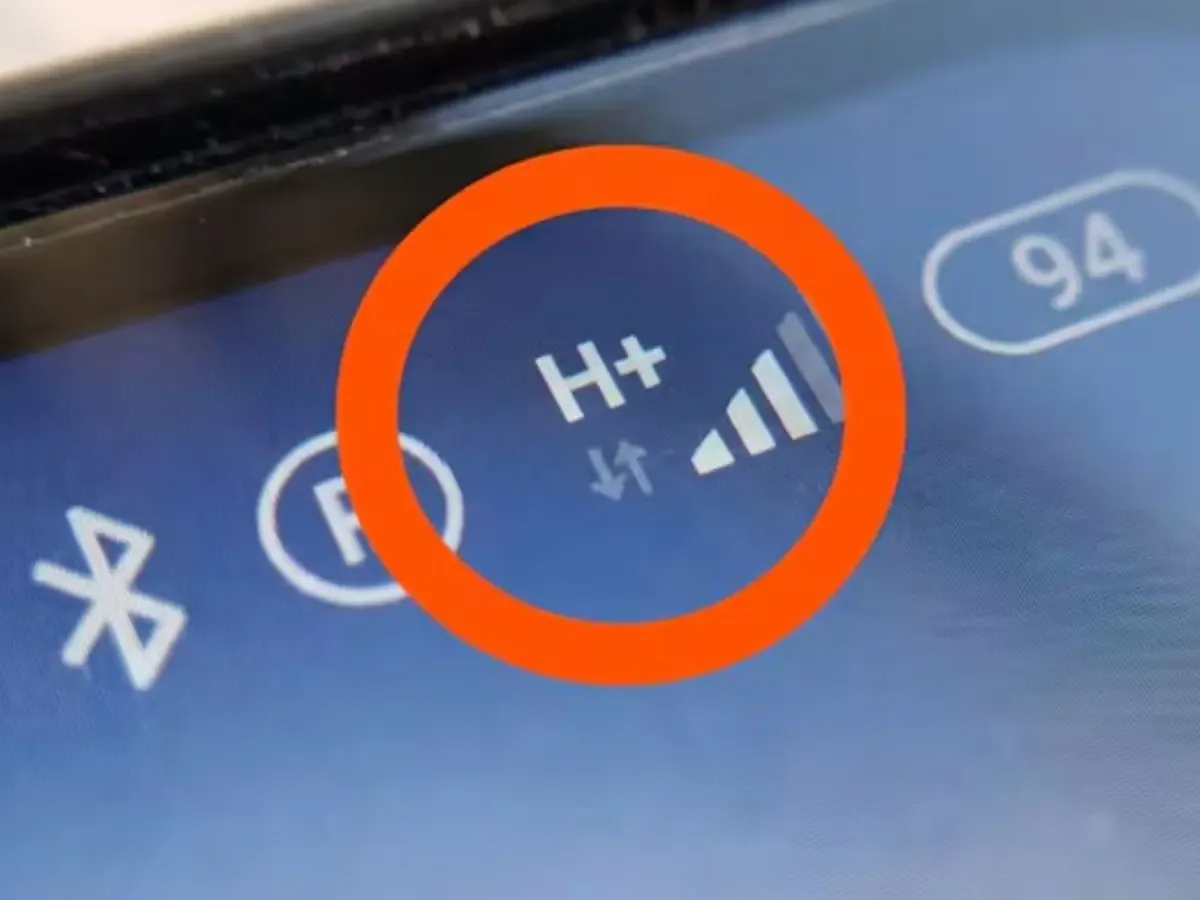
A smartphone screen showing the H+ network symbol next to the signal bars.
When this icon appears, your device still has a working internet connection, but the total speed is heavily throttled compared to modern standards.
Why Does H+ Replace 4G or 5G?
Smartphones are programmed to automatically hunt for the fastest available cellular network. When your phone drops down to H+, it means the device failed to secure a modern connection.
This downgrade typically happens for a few specific reasons:
- Lack of coverage: The immediate area simply does not have 4G or 5G towers available.
- Carrier limitations: The cellular provider is routing service exclusively through an HSPA+ network in that region.
- Device configurations: The phone’s internal settings are actively restricting the type of network it can access.
- Network overload: Temporary congestion or infrastructure problems are forcing devices onto older network bands.
Under normal circumstances, your phone will automatically switch back to 4G or 5G as soon as you move into a better coverage zone.
How to Clear the H+ Symbol and Restore Your Connection
If your phone gets stuck on an HSPA+ network for an extended period, you can manually force it to search for a faster tower.
Telecommunications specialists recommend executing these quick troubleshooting steps:
- Toggle Airplane Mode: Turn airplane mode on and off for a few seconds to force the phone to establish a brand-new connection to the local tower.
- Verify Network Settings: Dive into your settings and ensure that the preferred network type is set to either 4G/LTE or 5G.
- Reboot the Hardware: Restart the device to clear out any temporary software glitches interfering with the cellular radio.
- Check the Hardware: Ensure the SIM card is seated properly in its tray without any dust or misalignment.
- Relocate: Move to an area with fewer physical obstructions if you are trapped deep inside a concrete building or rural valley.
If the H+ symbol persists after attempting all these steps, the local infrastructure in your immediate location likely maxes out at HSPA+ technology.
Additional Tricks to Optimize Mobile Internet
Sometimes the issue extends beyond raw signal strength. To maximize your overall mobile internet performance, you need to manage how your device handles data.
Keep your phone’s operating system updated to ensure the cellular modem drivers operate efficiently. You should also audit your settings to restrict hidden applications from silently draining data in the background.
Finally, confirm the details of your mobile contract. You must verify with your carrier that your specific data plan actually includes access to modern 4G and 5G networks.
Exclusive Gift Unlocked!
You've been selected! Support our blog right now and unlock the rest of the article completely free.
👉 Quick Step: Check the box below and click the button to add us to favorites.